
About
Unlimited-OCR document OCR to Markdown
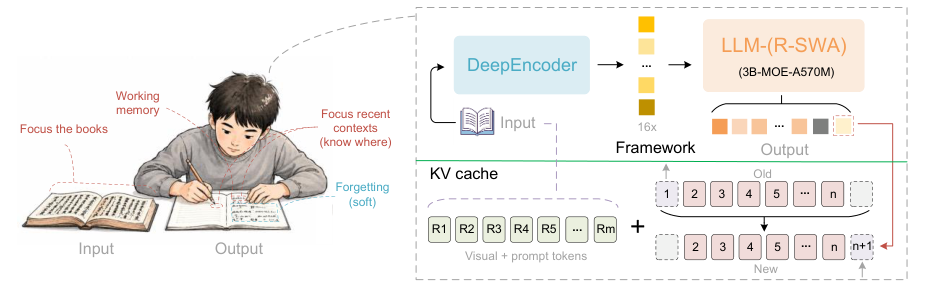
Unlimited-OCR by Baidu parses long document images into Markdown in a single OCR pass. It builds on the DeepSeek-OCR family and provides two single-image inference presets: Gundam for cropped high-throughput parsing and Base for standard full-image parsing.
The upstream Hugging Face inference code currently targets NVIDIA CUDA GPUs.
🚀 Use with Ikomia API
1. Install Ikomia API
We strongly recommend using a virtual environment. If you're not sure where to start, we offer a tutorial here.
2. Create your workflow
☀️ Use with Ikomia Studio
Ikomia Studio offers a friendly UI with the same features as the API.
- If you haven't started using Ikomia Studio yet, download and install it from this page.
- For additional guidance on getting started with Ikomia Studio, check out this blog post.
📝 Set algorithm parameters
- model_name (string, default:
baidu/Unlimited-OCR): Hugging Face model repo or local model path to load. - cuda (bool, default: auto): Use CUDA. The upstream Hugging Face inference path requires an NVIDIA CUDA GPU.
- prompt (string, default:
document parsing.): Text instruction appended after the<image>token. - mode (enum, default:
Gundam): Single-image preset.Gundam:base_size=1024,image_size=640,crop_mode=True.Base:base_size=1024,image_size=1024,crop_mode=False.
- max_length (int, default:
32768): Maximum generation length. - no_repeat_ngram_size (int, default:
35): Repetition guard used by the model generation call. Set to0to disable. - ngram_window (int, default:
128): Sliding window used withno_repeat_ngram_size. Set to0to use the preset default.
🔍 Explore algorithm outputs
The plugin returns two outputs:
algo.get_output(1):CTextIOfields with text and bounding boxes for display in Ikomia.algo.get_output(2):DataDictIOwith cleaned OCR text.
response is cleaned for printing: model detection tags such as <|det|>text [x1, y1, x2, y2]<|/det|> are removed. Bounding boxes are available in the CTextIO output.
Do not print algo.get_output(1).data["response"]: output 1 is CTextIO and does not have a data attribute. Use algo.get_output(2).data["response"] for text.
⏩ Advanced usage
Tips for best results
- Use
Gundamfirst for most document images. - Try
Basefor pages where crop mode misses global layout relationships. - Keep the default repetition settings for long documents; lower or disable them only if generation is unexpectedly truncated.
- Ensure images are sharp, upright, and high enough resolution for small text.
Prompt examples
document parsing.Convert the document to markdown.Extract tables and text from this document.OCR this image.
Developer

Ikomia
License
MIT License
A short and simple permissive license with conditions only requiring preservation of copyright and license notices. Licensed works, modifications, and larger works may be distributed under different terms and without source code.
| Permissions | Conditions | Limitations |
|---|---|---|
Commercial use | License and copyright notice | Liability |
Modification | Warranty | |
Distribution | ||
Private use |
This is not legal advice: this description is for informational purposes only and does not constitute the license itself. Provided by choosealicense.com.