
About
Face search using UniFace - find matching faces in an image database
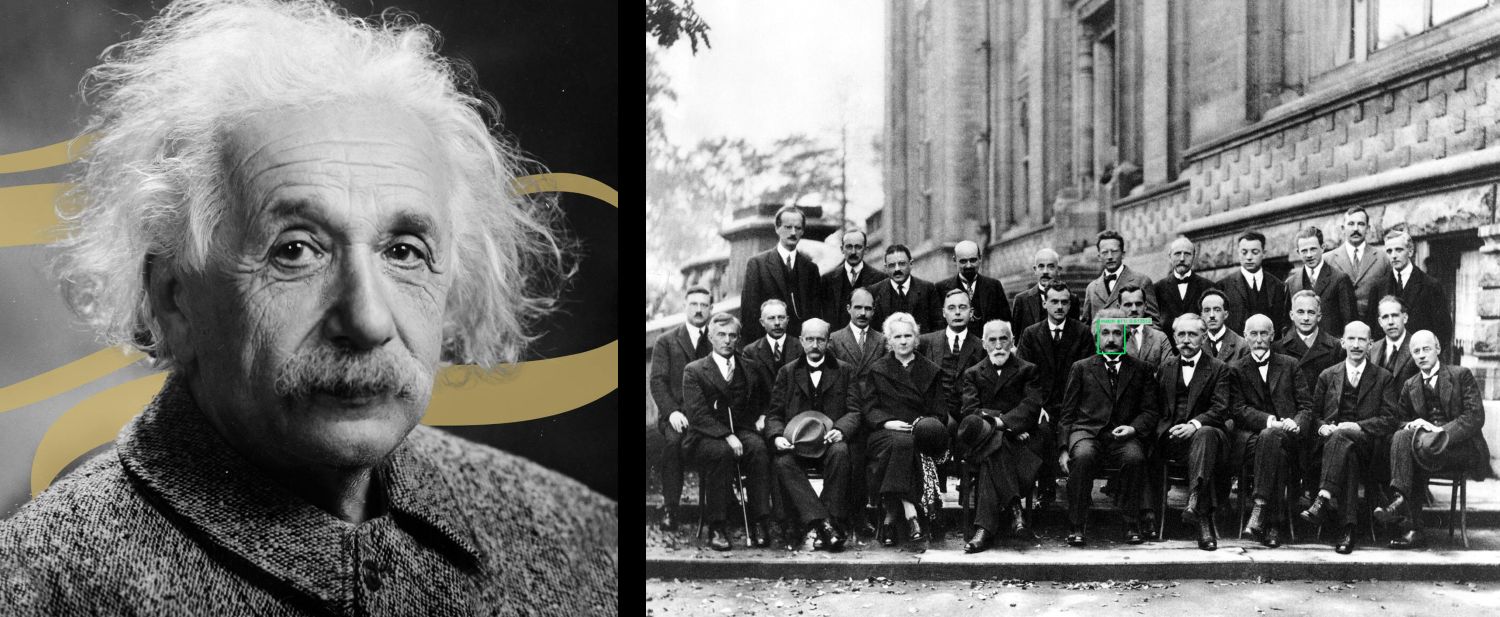
Search for matching faces in an image database using UniFace library. This algorithm performs one-to-many face matching - given a reference face image, it finds and highlights matching faces in a search image containing multiple people. UniFace is a lightweight production-ready face analysis library built on ONNX Runtime, combining face detection and recognition models (ArcFace/AdaFace).
🚀 Use with Ikomia API
1. Install Ikomia API
We strongly recommend using a virtual environment. If you're not sure where to start, we offer a tutorial here.
2. Create your workflow
☀️ Use with Ikomia Studio
Ikomia Studio offers a friendly UI with the same features as the API.
- If you haven't started using Ikomia Studio yet, download and install it from this page.
- For additional guidance on getting started with Ikomia Studio, check out this blog post.
📝 Set algorithm parameters
Parameters
- detector_name (str, default="retinaface"): Face detection model to use. Options: "retinaface", "yolov5face", "scrfd", "yolov8face".
- conf_thres (float, default="0.5"): Object detection confidence threshold.
- nms_thres (float, default="0.4"): Non-maximum suppression threshold.
- recognizer_name (str, default="arcface"): Face recognition model to use. Options: "arcface", "adaface", "mobileface", "sphereface".
- similarity_threshold (float, default="0.6"): Threshold for determining if a face matches the reference. Only faces with similarity above this threshold will be highlighted as matches.
- top_k (int, default="5"): Maximum number of top matches to consider and evaluate against the similarity threshold.
Note: parameter key and value should be in string format when added to the dictionary.
🔍 Explore algorithm outputs
Every algorithm produces specific outputs, yet they can be explored them the same way using the Ikomia API. For a more in-depth understanding of managing algorithm outputs, please refer to the documentation.
💻 How it works
The algorithm performs one-to-many face matching in these steps:
- Face Detection: Detects faces in both the reference image and the search image using the selected detector model (RetinaFace, YOLOv5Face, SCRFD, or YOLOv8Face).
- Reference Embedding: Extracts a face embedding (feature vector) from the reference face using the selected recognizer model (ArcFace, AdaFace, MobileFace, or SphereFace).
- Search Embeddings: Extracts face embeddings from all detected faces in the search image.
- Similarity Computation: Computes cosine similarity between the reference embedding and each face in the search image.
- Match Filtering: Ranks faces by similarity and highlights only those exceeding the similarity threshold (up to top_k matches).
The similarity score ranges from -1 to 1, where higher values indicate greater similarity. Only faces with similarity scores above the threshold are marked as matches. A threshold of 0.6 is commonly used, but you can adjust this based on your use case (higher for stricter matching, lower for more lenient matching).
🔗 Related algorithms
- infer_uniface_detection - Face detection using UniFace
- infer_uniface_verification - Face verification (1:1 matching) using UniFace
Developer

Ikomia
License
MIT License
A short and simple permissive license with conditions only requiring preservation of copyright and license notices. Licensed works, modifications, and larger works may be distributed under different terms and without source code.
| Permissions | Conditions | Limitations |
|---|---|---|
Commercial use | License and copyright notice | Liability |
Modification | Warranty | |
Distribution | ||
Private use |
This is not legal advice: this description is for informational purposes only and does not constitute the license itself. Provided by choosealicense.com.