
About
Inference for Segment Anything Model 3 (SAM3) - Interactive instance segmentation.
This algorithm proposes inference for the Segment Anything Model 3 (SAM3). SAM3 predicts instance masks that indicate the desired object given geometric prompts (points and/or boxes) or text prompts. With its promptable segmentation capability, SAM3 delivers unmatched versatility for various image analysis tasks.
🔑 Authentication Setup
Important: SAM 3 requires authentication to download model checkpoints from Hugging Face. Before using SAM 3, you must:
1. Request Access
Request access to the SAM 3 checkpoints on the Hugging Face repository:
- Visit: https://huggingface.co/facebook/sam3
- Click "Request access" and wait for approval
2. Generate Access Token
Once your access is approved, generate a Hugging Face access token:
- Go to: https://huggingface.co/settings/tokens
- Create a new token with read permissions (or write if you plan to upload models)
- Copy the token
3. Authenticate
Authenticate using one of the following methods:
Option A: Command Line (Recommended)
When prompted, paste your access token.
Option B: Environment Variable
Option C: Python Script
For more details, see the Hugging Face authentication guide.
Note: The model weights will be automatically downloaded on first use. If authentication fails, you'll receive clear error messages with instructions.
🚀 Use with Ikomia API
1. Install Ikomia API
We strongly recommend using a virtual environment. If you're not sure where to start, we offer a tutorial here.
2. Create your workflow
☀️ Use with Ikomia Studio
Ikomia Studio offers a friendly UI with the same features as the API.
- If you haven't started using Ikomia Studio yet, download and install it from this page.
- For additional guidance on getting started with Ikomia Studio, check out this blog post.
📝 Set algorithm parameters
General parameters
cuda[bool]: If True, CUDA-based inference (GPU). If False, run on CPU.input_size_percent[int]: Percentage size of the input image. Can be reduced to save memory usage.confidence_threshold[float]: Confidence threshold for predictions (0.0 to 1.0). Default: 0.5.
Text predictor parameters
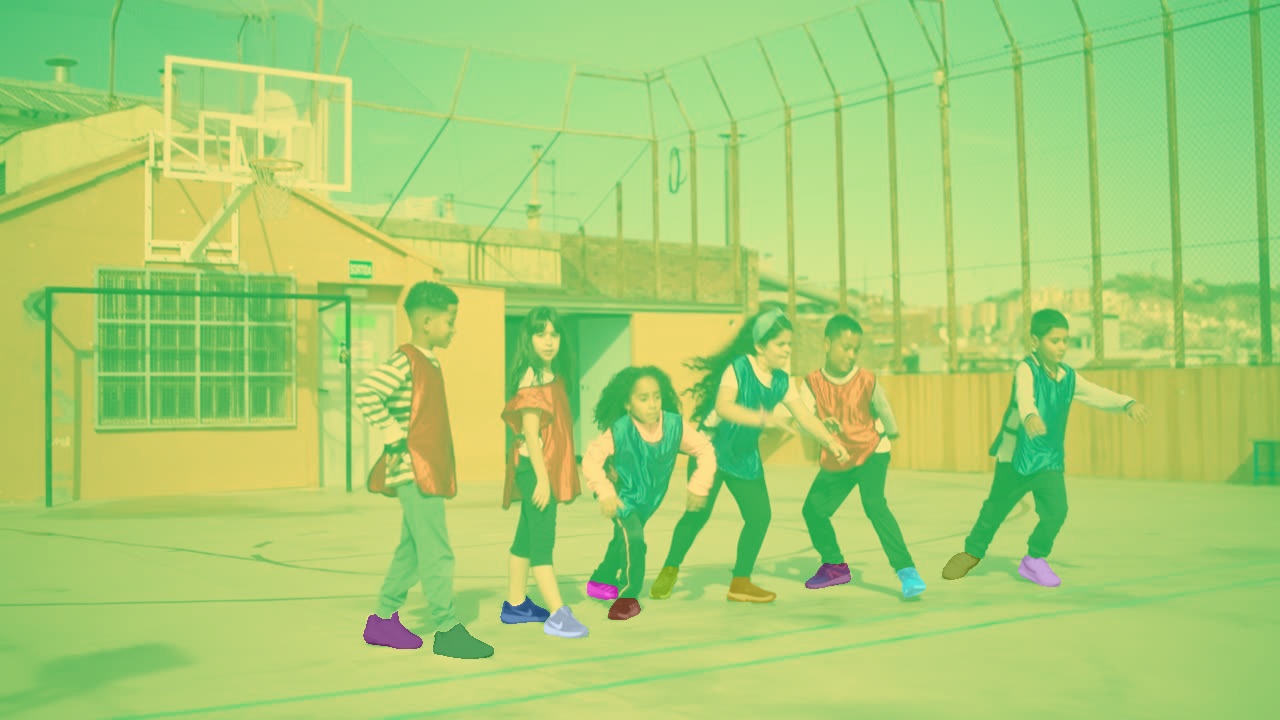
input_text[str]: Text prompt describing the object to segment (e.g., "shoe", "car", "person"). This enables text-based segmentation without needing geometric prompts.
Geometric prompt predictor parameters
input_box[list]: A Nx4 array of given box prompts to the model, in [[XYXY]] or [[XYXY], [XYXY]] format.input_point[list]: A Nx2 array of point prompts to the model. Each point is in [[X,Y]] or [[XY], [XY]] in pixels.input_point_label[list]: A length N array of labels for the point prompts. 1 indicates a foreground point and 0 indicates a background point.multimask_output[bool]: If true, the model will return three masks. For ambiguous prompts such as a single point, it is recommended to usemultimask_output=True. The best single mask can be chosen by picking the one with the highest score.
🔍 Explore algorithm outputs
Every algorithm produces specific outputs, yet they can be explored the same way using the Ikomia API. For a more in-depth understanding of managing algorithm outputs, please refer to the documentation.
⏩ Advanced usage
1. Text prompt (NEW in SAM3)
SAM3 introduces text-based prompting - simply describe what you want to segment!
This will segment all objects matching the text description in the image.
2. Single point prompt
When "multimask_output":"True", SAM3 generates multiple candidate masks (typically 3) for ambiguous prompts like a single point and returns them as separate outputs. This is useful when the intended object is unclear, allowing you to choose the best mask. When "multimask_output":"False", only the best mask (highest score) is returned.
3. Multiple points
A single point can be ambiguous. Using multiple points can improve the quality of the expected mask. Use label 1 for foreground points and 0 for background points.
4. Box prompt
Drawing a box over the desired object usually outputs a mask closer to expectation compared to point(s).
SAM3 can also take multiple box prompts for batch inference:
5. Point and box combined
Point and box can be combined by including both types of prompts. This can be used to refine the selection, for example selecting just the truck's tire instead of the entire wheel.
Using Ikomia STUDIO
- Text prompt: Enter a text description in the 'Text prompt' field (e.g., "shoe", "car")
- Point: Select the point tool and click on the object
- Box: Select the Square/Rectangle tool and draw around the object
- Coordinate prompts: Use the parameter fields in the settings panel
- Text: 'Text prompt' e.g., "shoe"
- Point: 'Point coord. [[xy]]' e.g., [[520, 375]]
- Point label: 'Point label [i]' e.g., [1] for foreground, [0] for background
- Box: 'Box coord. [[xyxy]]' e.g., [[425, 600, 700, 875]]
Developer

Ikomia